Step-by-Step: Converting an Approved Estimate into a Live Invoice: Closing the Loop
Save time and eliminate data entry errors by instantly turning your quotes into professional bills. Learn how to manage the transition from an approved estimate to a live invoice with a single click in your Pryseflow dashboard.

The transition from "Quoting" to "Billing" is the most critical moment in your sales cycle.
In many businesses, this transition is a manual, error-prone process. A salesperson sends a quote, the customer approves it, and then someone has to manually re-type all that information into an invoice. This is a waste of time and a recipe for mistakes—wrong prices, missing items, or incorrect customer details. Pryseflow’s Unified Sales Engine ensures that your approved estimates become accurate invoices instantly, with a single click. This tutorial walks you through the seamless workflow of closing the loop and getting paid faster.
The Value of a Linked Workflow
In Pryseflow, an estimate and an invoice are not just two separate documents; they are linked in a "Chain of Custody." This linkage provides several benefits:
Data Integrity: 100% of the data from the quote (items, quantities, discounts, and customer info) is carried over.
Audit Trail: You can always see which estimate led to which invoice, providing a clear history for your accountant.
Status Automation: When an estimate is invoiced, its status is automatically updated, preventing you from accidentally billing the same quote twice.
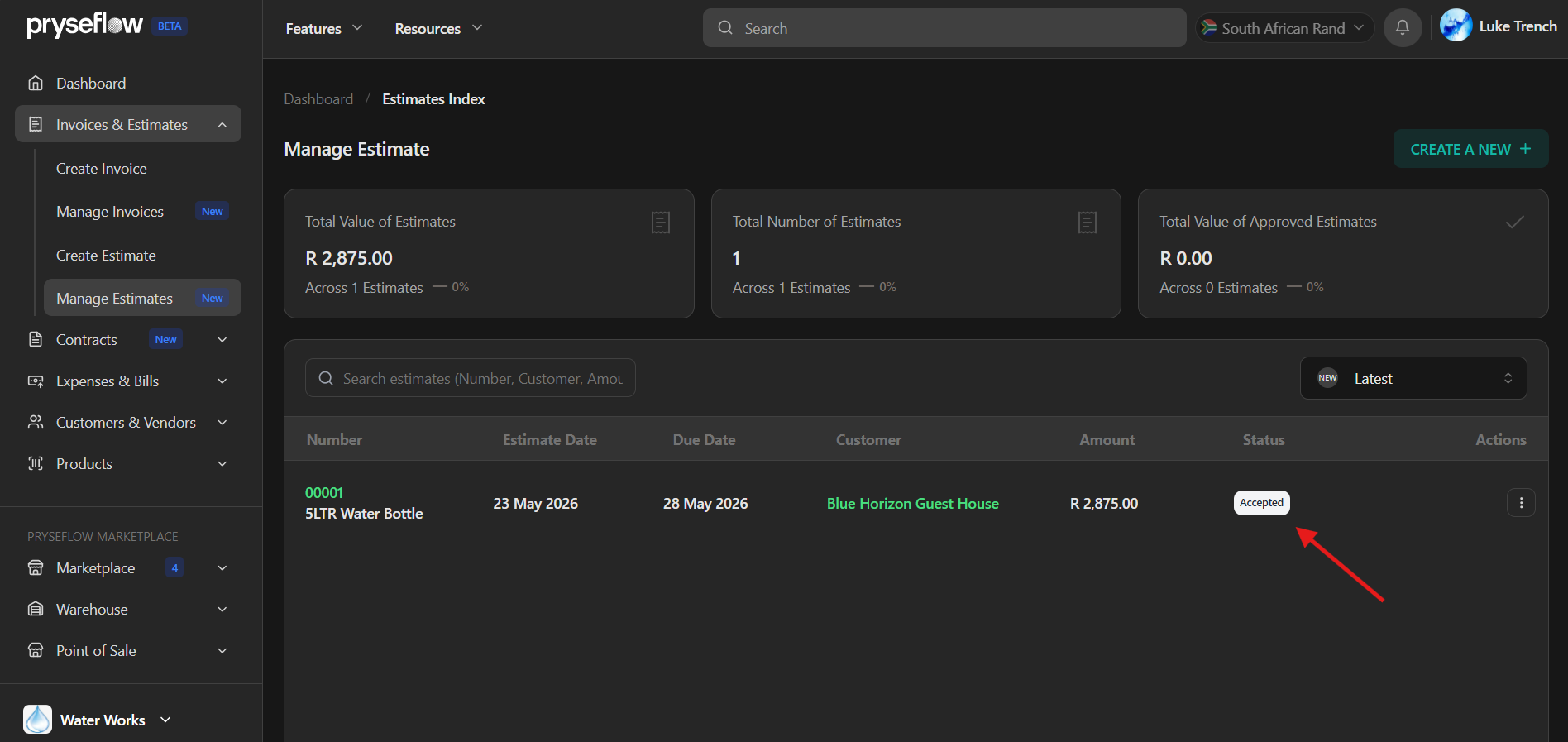
Step 1: Locate the Approved Estimate
Before you can convert, the estimate must be in a state that is ready for billing.
Log in to your Pryseflow Dashboard.
Navigate to Sales > Estimates.
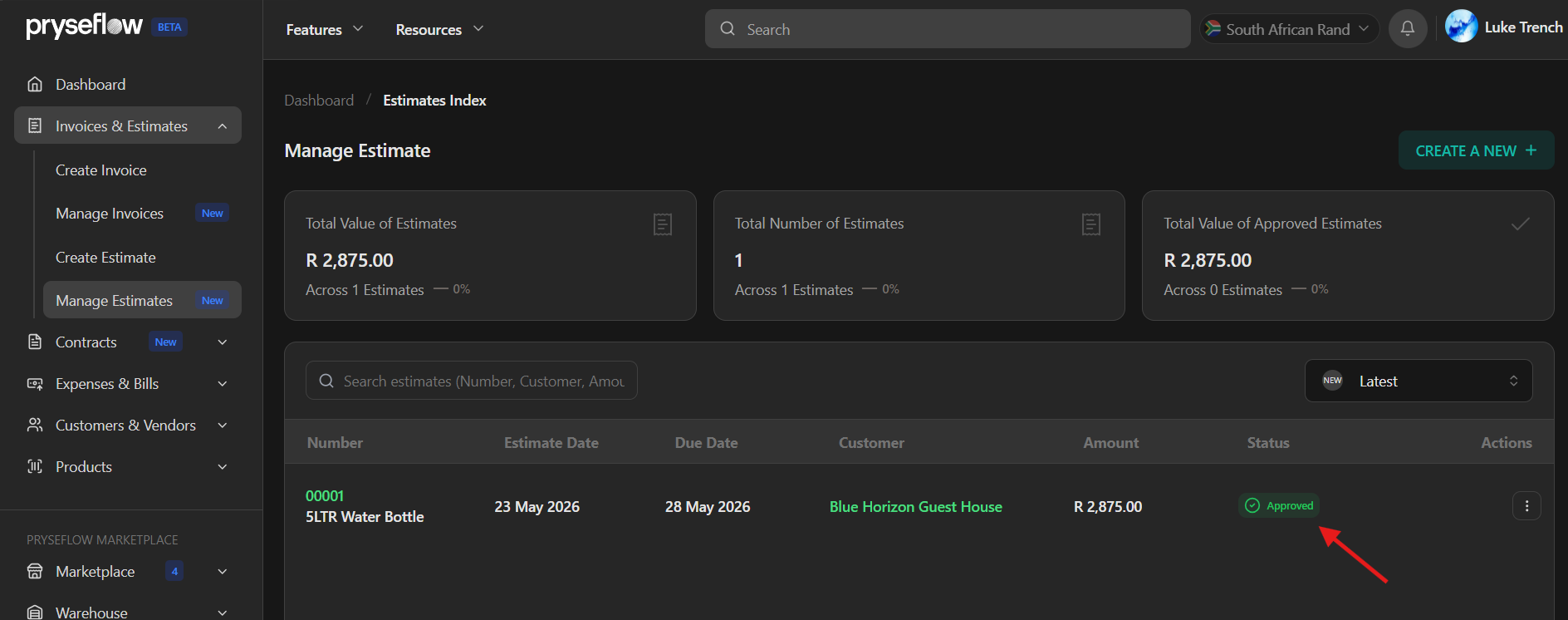
Use the filters to find estimates with the status Approved or Accepted. (Note: If a customer accepts a quote via their online portal, this status will update automatically).
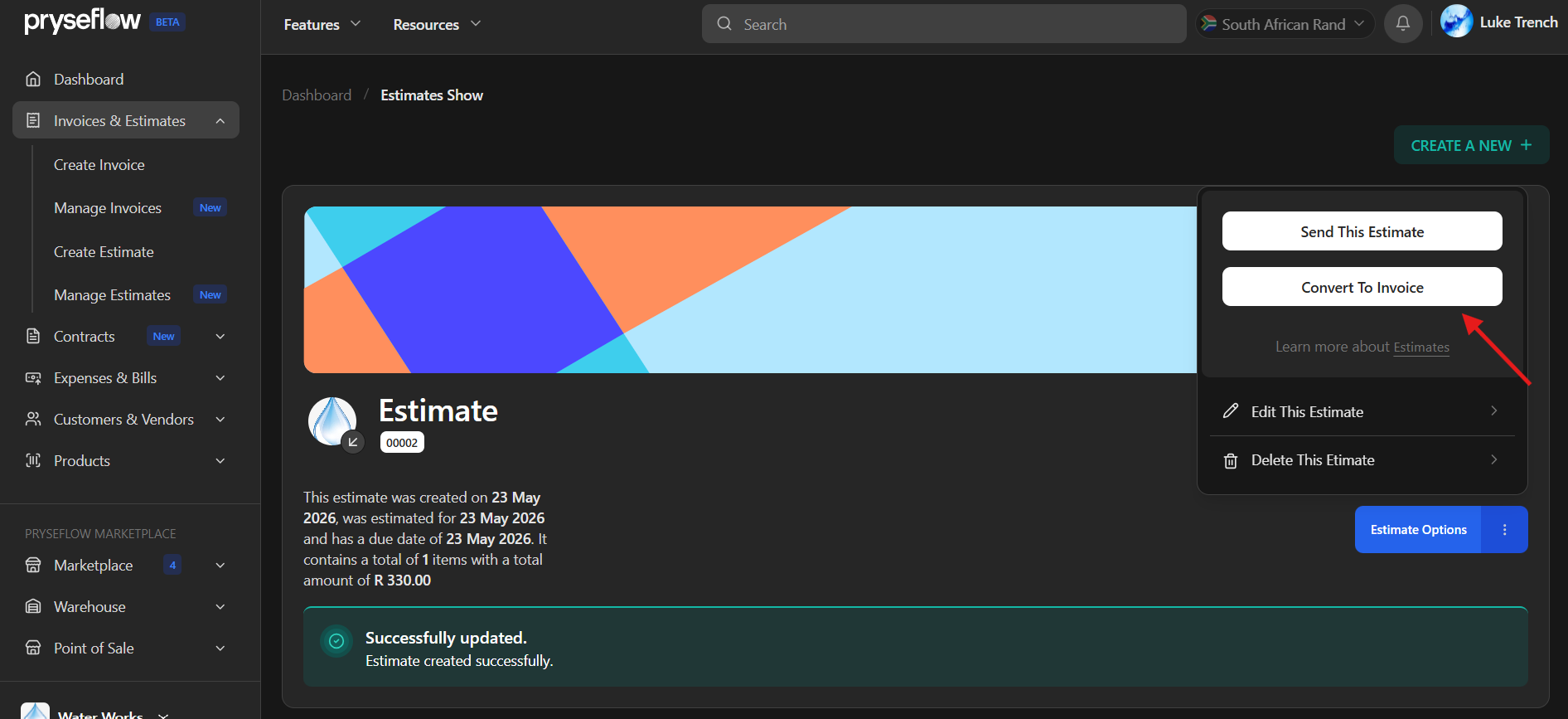
Step 2: The Conversion Process
This is where you turn a "Promise" into a "Bill."
Click on the Estimate Number to open the details page.
At the top of the screen, click the prominent Convert to Invoice button.
Pryseflow will instantly generate a Draft Invoice.
Reviewing the Draft
Even though the data is copied exactly, you have the opportunity to make final adjustments. This is useful if:
The scope of work changed slightly after the quote was approved.
You need to add a final shipping fee or a "Deposit Paid" deduction.
You want to add a specific "Thank You" note or payment instructions to the invoice footer.
Pro Tip: Partial Invoicing
If you are working on a large project, you might not want to invoice the whole estimate at once. Pryseflow allows for Partial Invoicing. You can select only specific items or a percentage of the total to convert, leaving the rest of the estimate "Open" for future billing.
Step 3: Issuing and Sending the Invoice
Once you are happy with the draft, it’s time to make it official.
Click Save & Issue. This assigns a unique, sequential Invoice Number to the document.
Choose Delivery:
Email: Send a professional PDF invoice with a "Pay Now" button.
WhatsApp: Send a direct link to the invoice portal.
Print: Generate a high-quality PDF for physical delivery.
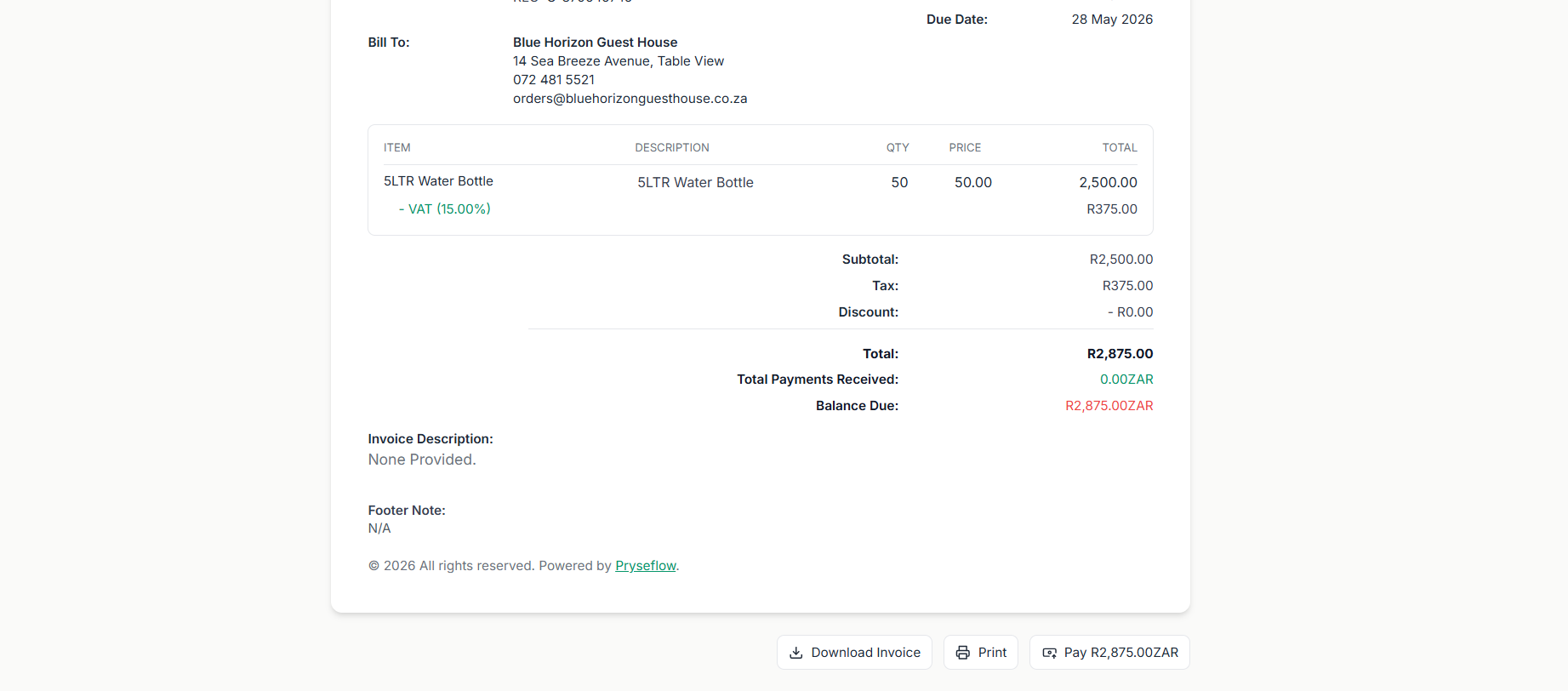
Step 4: Tracking Payment and Closing the Loop
The workflow doesn’t end with sending. Pryseflow continues to track the invoice until the money is in your account.
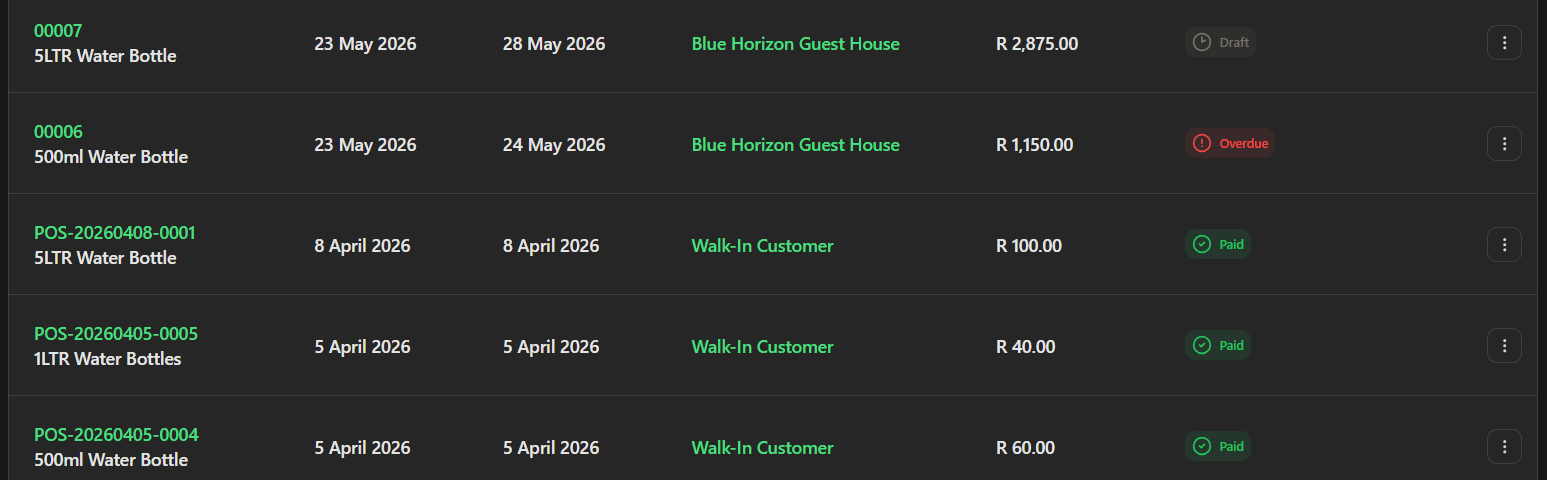
Real-Time Status Tracking
Sent: The invoice has been delivered.
Viewed: The customer has opened the invoice link.
Overdue: The payment date has passed (Pryseflow can send automated reminders here).
Paid: The transaction is complete.
Automatic Inventory Deduction
If your invoice includes physical products, Pryseflow will automatically deduct those items from your Inventory the moment the invoice is issued. This ensures your stock levels are always accurate across your POS and Marketplace.
Common Questions (FAQ)
Can I convert an estimate multiple times?
No. To prevent double-billing, Pryseflow "Locks" an estimate once it has been fully invoiced. If you need to bill more, you should create a new estimate or a separate invoice.
What if the customer rejects the invoice?
You can "Void" the invoice and return to the original estimate to make corrections. You can then re-convert it to a new, corrected invoice.
Can I link a contract to this workflow?
Absolutely. You can attach a Signed Digital Contract to the estimate before converting it. This ensures that the legal agreement and the financial bill are always stored together.
Conclusion: Efficiency is Profit
Every minute you spend on manual data entry is a minute you aren’t spending on growing your business. By mastering the Estimate-to-Invoice workflow, you are building a professional, error-free sales machine. You are ensuring that your customers receive accurate bills, your inventory is always correct, and your cash flow is predictable. Stop re-typing. Start billing. Build your sales cycle with Pryseflow.
Close the deal. Build with Pryseflow.
This is a how-to, not a product page. The matching product page is invoicing and payments.